Creating Your First Race
Step-by-step guide to creating, configuring, and publishing your first race on RoxRace.
Before you start: create an organisation
An organisation is required before you can create a race. All races on RoxRace belong to an organisation — it represents the gym, club, or company running the event.
Sign up at roxrace.com and log in. Once logged in, click Create an organization from the quick actions on your dashboard.
Fill in three fields and accept the agreement:
- Organization name — Your gym, club, or company name
- City
- Country
- Data Processing Agreement — Tick the box to accept it (required)
Once your organisation is set up, you can create as many races as you like under it.
Step 1: Create a new race
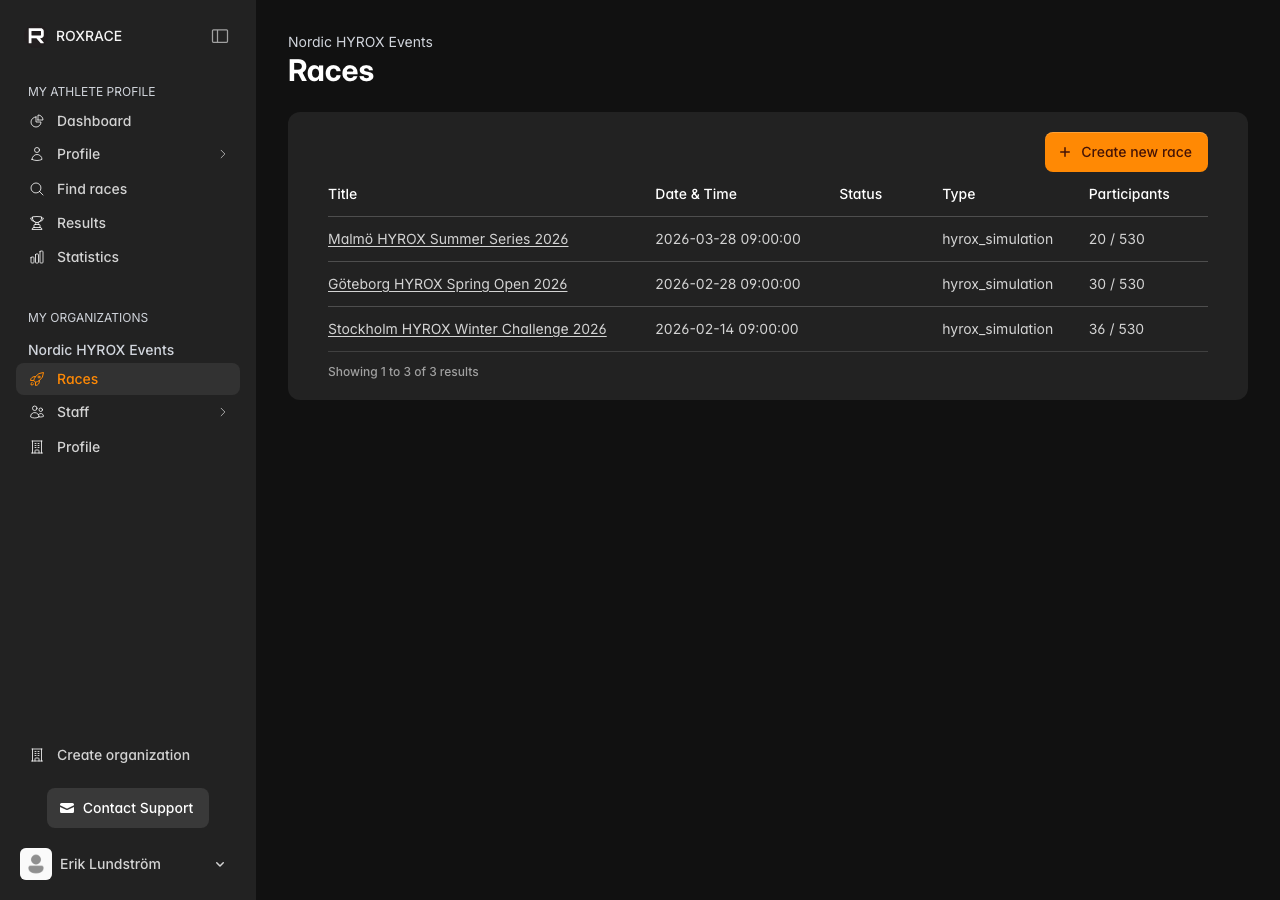
From your organization dashboard or the Races page, click Create new race. A short dialog with three tabs opens:
- Details — Title, venue name, city, country, and the race Type (HYROX Simulation, Swimrun race, Running race, OCR race, Functional Fitness, Custom HYROX like race, HYROX Conditioning Test, or Other)
- Template — Optionally turn on Use race template and pick HYROX Simulation or HYROX Conditioning Test. The template pre-fills divisions, stages and events, and the scoring mode. Leave it off to start with a blank race.
- Payment — Choose whether to Apply organization payment defaults to the new race
Click Create race. The race is saved as a draft.
Step 2: Configure your race
Fill in the basics:
- Race details — Title, description, race start and end, venue information, and the Registration opens / Registration closes dates (athletes can only register between these two dates, so set both)
- Organizer info — Contact name and email for your race
- Divisions — Create one or more divisions with pricing, capacity, and team options
- Stages & events — Define the race format (stations, distances, scoring)
- Registration options — Choose which athlete fields are required and how team registration works
Step 3: Set up payments
Open your race's Setup → Payment page and choose how registration fees are collected:
- Own Stripe account — Payments go straight to your Stripe account. Click Connect with Stripe in the Connect payment account section and complete the Stripe onboarding. Only the organization owner can connect a Stripe account.
- Roxrace collects — No Stripe account needed. RoxRace collects the fees and you request a payout after the race.
Tip: if you connect Stripe under Payments & fees in your organization before creating races, new races inherit that Stripe account automatically. See Setting Up Payments for a full walkthrough.
Step 4: Publish
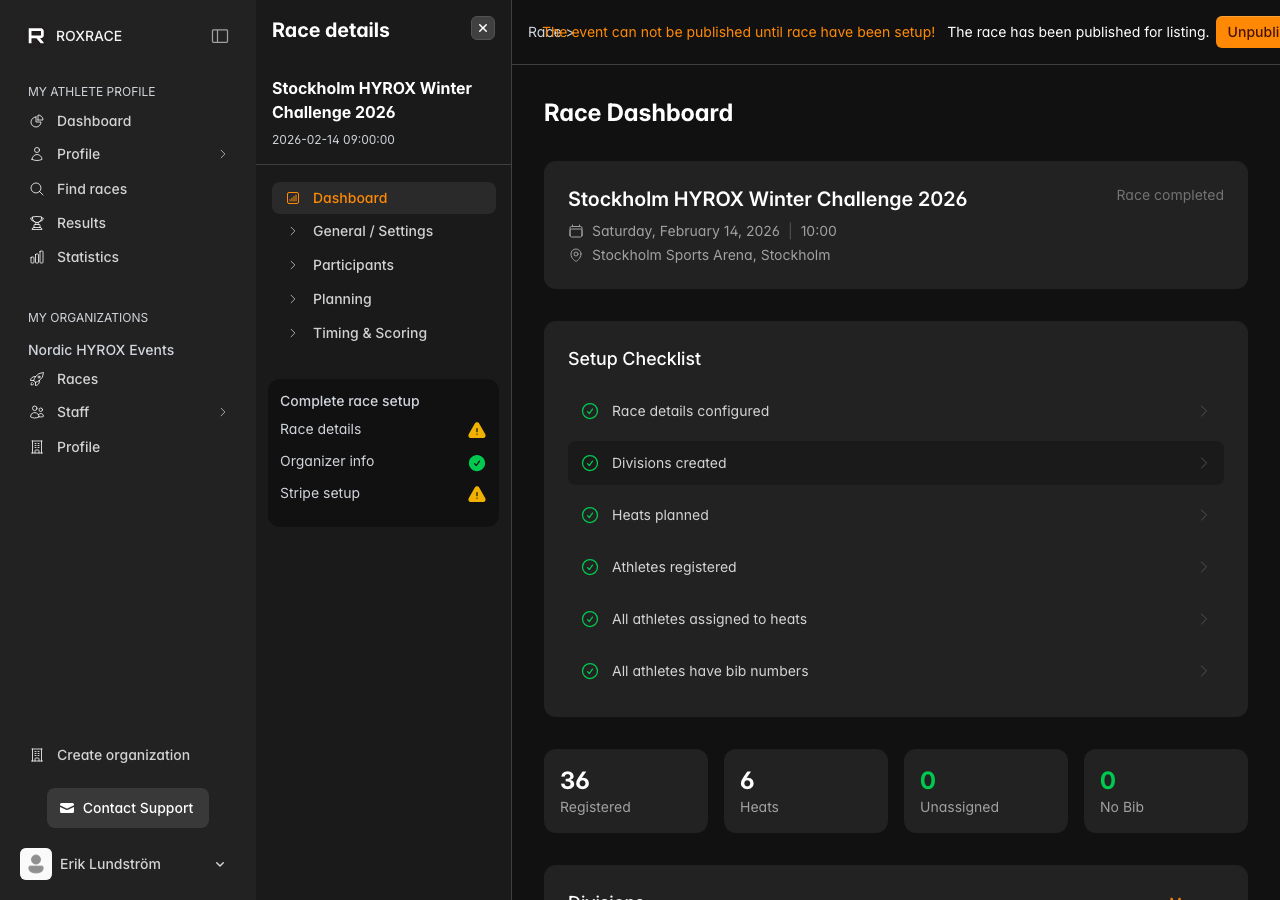
When everything looks good, go to Public → Public URLs and turn on Race published (you can also click Publish at the top of the race menu). Publishing is only possible once race details, organizer info, and payment setup are complete. Your race then becomes visible on roxrace.com, and athletes can register between your registration open and close dates.
After publishing
- Monitor registrations from your dashboard
- Schedule heats and assign athletes
- On race day, use live timing to capture results
- Publish results and leaderboards