
Heat Planning — Complete Guide
Assign athletes to start waves before race day — generate heats by division and estimated time, drag athletes into place, reorder after late registrations or cancellations, shift times, and print schedules.
What are heats?
Heats (or waves) group athletes into staggered start slots. Instead of everyone going at once, smaller groups start at regular intervals. Each heat has a start time and a spot limit.
Heats are named automatically — always Heat 1, Heat 2, Heat 3… in start-time order across the whole race. When you add, remove, or move a heat, the others are renumbered so names never repeat or skip.
Two heats of the same race can never share a start time — the start line runs one countdown at a time. If an edit, shift, rebuild or generate run would put a heat on a time another heat already has, nothing changes and you're told which time is taken. Pick another time, or shift the later heats first.
Heat planning is done after registration closes and before race day — once you know who has signed up, you assign them to start waves. The Heats & Waves page is your main planning workspace. The Schedule page shows a clean read-only view of the full timetable, and can be printed.
The toolbar has Generate heats, Add heat, Reorder athletes, and an Actions menu with Rebuild start times, Auto-assign, Remove all heats — and Notify all once the startlist is published. Generate heats and Add heat stay greyed out until the race has a start and end date.
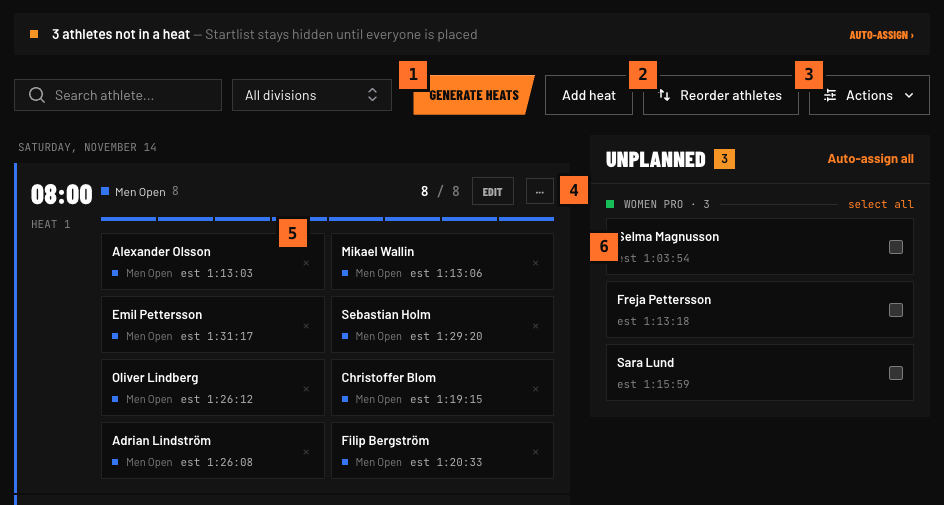 FIG 1 — ① Generate heats, ② Reorder athletes, ③ Actions menu (Auto-assign, Rebuild start times…), ④ the heat's ··· menu, ⑤ an athlete card with estimated time — drag to move or reorder, ⑥ an unplanned athlete — click to select, or drag into a heat.
Division order
Before generating heats, set the order of your divisions. On the Divisions & pricing page, drag divisions up or down by their ⋮⋮ handle (on a phone, press and hold the handle briefly, then drag). The order from top to bottom decides the sequence divisions are placed into heats, and where new heats for a division are slotted in later.
Generating heats
Click Generate heats to open the wizard. It has four tabs: Details, Divisions, Options, and Preview.
Date & first heat start
Pick the Date and the First heat start time. For multi-day races, run the wizard separately for each day. The date defaults to the day you're viewing, or your race start date. If any of the new heats would start at the same time as an existing heat, nothing is created — pick a start time after the existing heats.
Minutes between heats
The interval between heats. 15 minutes means Heat 1 at 08:00, Heat 2 at 08:15, and so on.
Max athletes per heat
The maximum number of athletes in each heat.
Auto-assign athletes after creating heats
On by default. When checked, the wizard also assigns athletes into the heats it creates, and the Assignment strategy options below appear. Uncheck it to create empty heats only — you'll assign athletes afterward with Auto-assign or by dragging them.
Assignment strategy
How athletes are distributed across the new heats (only shown when auto-assign is on and One division per heat is off):
By division order + estimated time (recommended) Athletes are grouped by division in the order you've set on the Divisions & pricing page. Within each division, athletes are sorted by their estimated finish time (fastest first). This creates heats where athletes of similar ability run together, and divisions run in a predictable sequence.
Balanced distribution Athletes are distributed evenly across heats without regard for division or estimated time.
Fill sequentially Heats are filled one at a time until each is full before moving to the next.
Group by division Athletes are grouped by division, but without the estimated-time sorting within each group.
HYROX – Minimize weight changes Orders athletes heavy → standard → light sled weights so weights only need to change twice.
One division per heat
Each division gets its own heats — enough for its unplanned athletes — so a heat never contains athletes from more than one division. Enabling this reveals an Extra gap between divisions (minutes) field — a buffer between the last heat of one division and the first heat of the next. It shapes the heats even when auto-assign is off. With auto-assign on, the strategy is always By division order + estimated time.
Divisions to include
Select which divisions to include in this generation run. This is the key to multi-day planning — see below.
Preview
The final tab shows how many heats will be created and how many athletes go in each. Check this before confirming.
Multi-day races
For events spread across two or more days, run the generate wizard once per day:
- Open the wizard → set Date to Saturday → select only Saturday's divisions → Generate
- Open the wizard again → set Date to Sunday → select only Sunday's divisions → Generate
The heat list groups heats by day with a date header. Use the day filter buttons in the toolbar to focus on one day at a time (the page opens on the first day with heats — click All to see every day). Generate heats, Auto-assign, Reorder athletes, Rebuild start times, Add heat, Insert heat and Shift start time all work on the day you're viewing — athletes are only placed in that day's heats.
Moving athletes by hand
Drag an athlete card from the unplanned list into a heat, or from one heat to another. While you drag:
- The heat you're over is outlined, and the athlete takes the first free spot in it.
- If the heat is already full, the card turns amber — dropping it there puts the heat over capacity.
You can also drag within a heat to change the order of its athletes. The order you set is saved and kept: it's the order the heat is shown in on this page, and the athletes at the bottom of an overfull heat are the ones marked Over capacity — and the first ones moved on by Reorder athletes.
A quick click on a card never starts a drag — a drag only begins once you move the mouse. On a touchscreen, press and hold the card briefly before dragging.
Each athlete card shows the athlete's division and estimated time (est 1:13:03, or no est. if they didn't enter one).
Auto-assigning athletes
Use Auto-assign (the Actions menu, or Auto-assign all in the unplanned panel) to place everyone who is still unplanned. Athletes who already have a heat are only moved where noted below. A live preview shows exactly what will happen before you confirm.
By division, fastest first (recommended) Each athlete joins their own division's heats. The division's athletes — the ones already placed and the new ones — are sorted by estimated time and fill the division's heats in start order, so a fast late registration ends up in an early heat and the slower athletes shift one heat along. Athletes without an estimated time keep their current order, and new ones come after them. Divisions are never mixed. A division that has no heats yet uses empty heats where it belongs in the division order, or gets new heats there. With Add heats if needed off, a division with no heats of its own takes free spots in other heats instead.
Hyrox sled order, Balanced and Sequential fill free spots in the existing heats of the day you're viewing, as in the Generate wizard.
Options:
- Add heats if needed to assign everyone (on by default) — if athletes don't fit, new heats are added with the same size and interval as the heats around them. Off: whoever doesn't fit stays unplanned.
- Shift later heats to make room (By division, fastest first — on by default) — a division's new heat goes right after its last heat, and the heats after it start one interval later. If there's already a gap in the schedule there, it's used and nothing moves. Off: the new heat goes at the end of the day.
If some athletes still can't be placed, a notice tells you how many.
Reorder athletes
Use Reorder athletes in the toolbar after cancellations, when heats are overfull, or after you've changed things by hand. It moves athletes between heats — unplanned athletes are never touched (use Auto-assign for them). Choose a strategy and check the preview, which shows every heat's before → after count, new heats, and heats that will be removed. (Reorder athletes isn't available for athletes-choose races.)
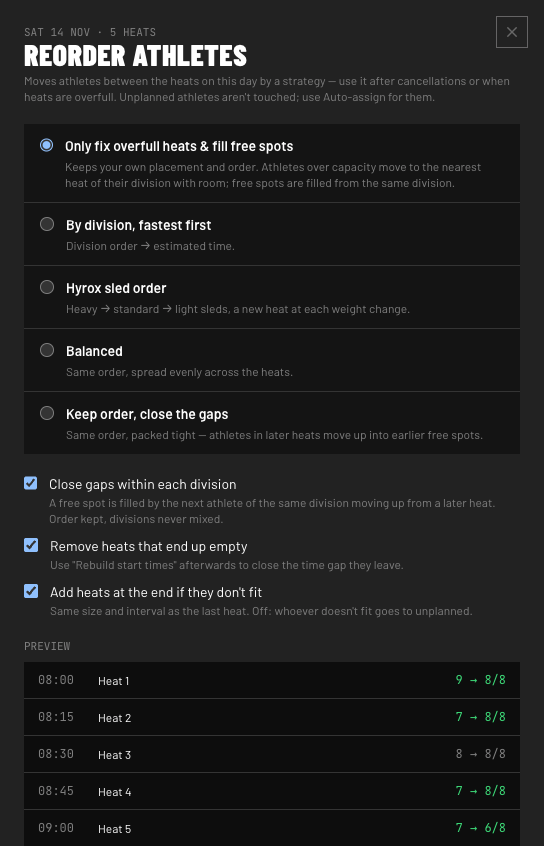 FIG 2 — Reorder athletes: Heat 1 is one over capacity (9 → 8/8), so its last athlete moves on to Heat 2; Heat 4's free spot is filled from Heat 5.
Only fix overfull heats & fill free spots (default) Keeps your own placement and order and moves as little as possible:
- An overfull heat's last athlete moves to the next heat of the same division, placed first there. If that heat is now overfull, its last athlete moves on — and so on, until a heat has room. If the division runs out of heats, a new heat is added right after its last one when there's a free gap in the schedule there; otherwise it's added after the last heat.
- With Close gaps within each division (on by default), a free spot is filled by the next athlete of the same division moving up from a later heat.
Example: Heat 1 has Liam, Hugo and Lucas on 2 spots, Heat 2 is full, Heat 3 has one free spot. Lucas moves first into Heat 2, which pushes Heat 2's last athlete into Heat 3. Everyone else stays put.
By division, fastest first — re-sorts every athlete by division order and estimated time and packs the heats in start order. Tick Start a new heat for each division to keep divisions apart.
Hyrox sled order — heavy → standard → light sleds, with a new heat at each weight change.
Balanced — the same order, spread evenly across the heats.
Keep order, close the gaps — the current order, packed tight: athletes in later heats move up into earlier free spots, across divisions.
Options for every strategy:
- Remove heats that end up empty (on by default) — use Rebuild start times afterwards to close the time gap they leave.
- Add heats at the end if they don't fit (on by default) — off: whoever doesn't fit goes to unplanned.
Heats that have started or finished, and athletes with a result (including DNS), are never moved.
Unplanned athletes panel
The panel on the right (below the heats on smaller screens) shows all athletes who haven't been assigned to a heat yet, grouped by division and sorted by estimated finish time (fastest first). Athletes marked DNS are listed separately at the bottom. (The search box in the toolbar filters the heat cards, not this panel.)
Selecting athletes for assignment
Click any athlete card to select it — the card highlights and its checkbox is ticked. Click again to deselect. To select all athletes in a division at once, click select all next to the division header.
Once one or more athletes are selected, the panel header changes to an action bar showing how many athletes are selected.
Assigning selected athletes to a heat
- Select one or more athletes in the unplanned panel.
- Choose a heat from the Assign to heat dropdown in the action bar.
- Click Assign.
If the heat has room, the athletes are placed immediately. If it doesn't have enough free spots, an overflow dialog shows how many spots are available. Continue assigning to subsequent heats until all N athletes are placed is ticked by default, so clicking Assign fills the heat and spills the rest into the next heats. Untick it to fill only this heat and leave the rest unplanned.
Click Clear to drop the selection. It also clears automatically after a successful assignment.
Heat cards
Each heat card shows its start time, name, division breakdown, a spot bar, and its athletes in their saved order. The × on an athlete card moves them back to unplanned.
Click Edit (or the start time) on a card to change its Start time and Spots (capacity). If another heat already starts at that time, you'll see Another heat starts then. For athletes-choose races, the panel also has a Divisions that can pick this heat checklist (see Athletes Choose Their Own Heat), and the card has a quick + division popover. Changing a heat's start time renumbers the heats if its place in the schedule changes.
The ··· menu on each card has:
- Shift start time — see below
- Insert heat after — see below
- Fill from unplanned — fills the heat's free spots with unplanned athletes, fastest first, from any division
- Move all athletes… — moves everyone in the heat to a heat you pick (the next heat is preselected). Divisions and capacity aren't checked — a full heat goes over capacity.
- Delete heat — its athletes go back to unplanned
Shifting heat times
Open a heat's ··· menu and choose Shift start time. Enter a positive number to push later (+30 = 30 minutes later) or negative to pull earlier (−15 = 15 minutes earlier).
Also shift subsequent heats — all heats after this one shift by the same amount, keeping the gaps between them. If a day filter is active, only heats on that day are affected.
If a shifted heat would land on a time another heat already has, nothing moves and you're told which time is taken.
Insert heat after
Open a heat's ··· menu and choose Insert heat after to add an empty heat right after it. It starts one gap after this heat — at the next heat's current time, or one usual interval later if it's the last heat — and gets the same number of spots.
Because two heats can't share a start time, Shift all subsequent heats forward… to make room is ticked for you when the new heat's time is taken. It pushes every heat after it back by that gap. If you untick it while the time is taken, the heat isn't inserted. The heats after the new one move up one number.
Rebuild start times
If times have become uneven — from shifts, removed heats, or manual edits — use Rebuild start times from the Actions menu.
Set:
- Date — which day to rebuild (defaults to the day you're viewing)
- Start time — when the first heat should start
- Gap between heats (minutes) — at least 1 (defaults to the schedule's usual interval)
Heats are resequenced in their current order, starting from your chosen time with even spacing. If no day filter is active, this resequences every heat in the race across all days. With a day filter, heats on other days keep their times — if a rebuilt time would land on one of them, nothing changes.
Schedule view & publishing
The Schedule page shows the full timetable in a clean format, grouped by day.
- Day filter — show only one day's heats
- Division filter — show only one division
- Print Schedule — a print-ready view with three layouts: Per Heat (a new page for each day), Compact Startlist, and Super Compact. Print always includes every day and division, and lists athletes by bib number.
Athletes can't see their heat until you publish the startlist. Toggle Startlist published on the Heats & Waves page to make it visible on the public race page — optionally emailing every assigned athlete their heat at the same time. The switch works once the race itself is published. If you publish the startlist from Public URLs instead, no emails are offered — use Notify all afterwards. Moving athletes, reordering, auto-assigning or shifting times doesn't email anyone: afterwards, use Notify all in the Actions menu to send the updated schedule.
The Needs attention strip at the top of the page flags things worth checking before you publish (up to four at a time): over-capacity heats, empty heats, and how many athletes are still unplanned — plus, for athletes-choose races, full divisions with athletes waiting and heats with no division mapped.
Tips & strategies
HYROX simulations
Generate with By division order + estimated time and One division per heat. Set the division order so your fastest divisions (Pro) run first or last. A 5–10 minute division gap gives the MC time to introduce each group.
Late registrations
Run Auto-assign → By division, fastest first. Each new athlete lands in their division's heats in estimated-time order; if a division needs another heat it's slotted in right after the division's last heat, and later heats move back.
Cancellations and overfull heats
Run Reorder athletes → Only fix overfull heats & fill free spots. Gaps close within each division, overfull heats push their last athletes along, and heats that end up empty are removed. Follow with Rebuild start times if you want to close the time gaps.
Your own order
Drag athletes into the order you want within each heat. Only fix overfull heats & fill free spots keeps that order — only the athletes at the bottom of an overfull heat move.
Multi-day events
Use Divisions to include in the wizard to plan each day separately, and the day filter to review and adjust one day at a time.
Placing a whole division manually
Click select all next to the division header in the unplanned panel, pick the target heat, and click Assign. If the heat fills up, the overflow dialog spills the rest into the next heats (untick Continue assigning to subsequent heats to keep them unplanned instead).
This guide covers the default flow, where you plan heats after registration closes. If you'd rather let athletes pick their own start time as part of registering, see Athletes Choose Their Own Heat instead.