
Registering an Athlete Manually
Register athletes directly from the admin panel — useful for late sign-ups, on-site registrations, or athletes without internet access.
When to use manual registration
As a race organizer, you can register athletes directly from your admin panel — bypassing the public registration flow. Use this for:
- Late sign-ups after registration closes
- On-site registrations on race day
- Athletes who don't have internet access
- Correcting or adding entries after the fact
Location: Race Management → Participants → Athletes → Register athlete button (in the toolbar above the list)
Two modes
The registration modal starts in Search existing mode. Switch to Create new if the athlete does not yet exist in the system.
Search mode — register an existing athlete
Use this when the athlete has taken part in one of your organization's races before. Search only lists athletes who have registered for, or been on a team in, one of your races — athletes who have only raced with other organizers never appear. For anyone else, use Create mode with their email: if they already have a RoxRace account, it's linked automatically.
- Type at least 2 characters of the athlete's name or email.
- Click Select next to the athlete in the results.
- Fill in any profile fields shown below the selected athlete — phone, gender, date of birth, emergency contact. A field appears when the race requires it or when it's missing from the athlete's profile. Anything you enter is saved back to the athlete record.
- Select a Division.
- Optionally enter an Estimated finish time (required if the race has this setting enabled).
- Choose a Payment option (see below).
- Click Register & send confirmation.
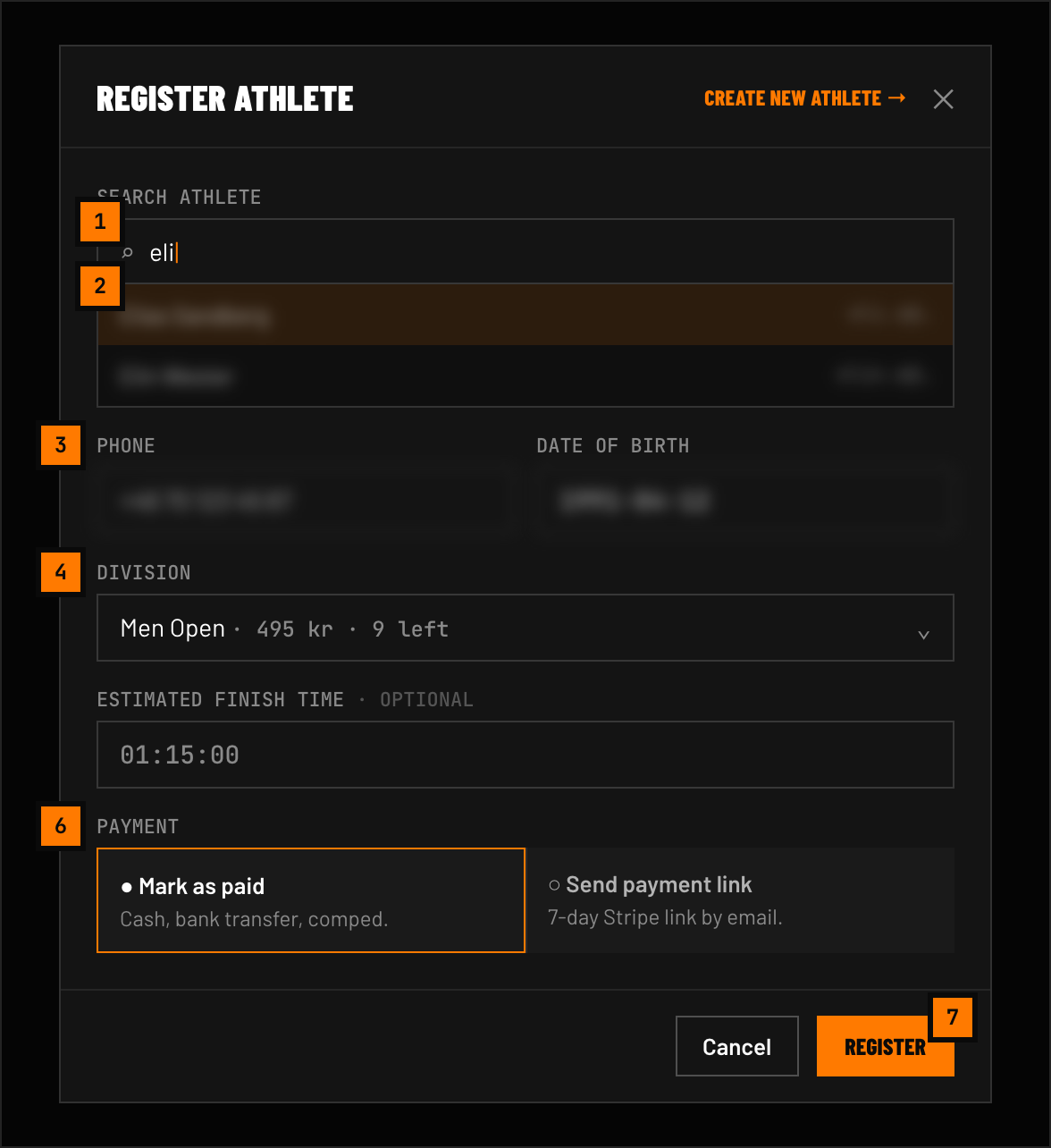 FIG 1 — The modal in search mode. Numbers match the steps above.
Create mode — register a new athlete
Use this when the athlete is not in the system yet. Click Create new at the top of the modal to switch modes.
- Fill in the athlete's details:
- First name, last name, email (always required)
- Gender, date of birth, phone (required if enabled on the race)
- City, country (optional)
- Emergency contact name, relationship, phone (required if enabled on the race)
- Select a Division.
- Optionally enter an Estimated finish time.
- Choose a Payment option (see below).
- Send invitation email to set up account — checked by default. The new athlete receives an email with a link to set their password and claim their account. Uncheck it if you prefer to handle onboarding manually.
- Click Register & send confirmation.
A user account is created automatically. If an account with that email already exists, the existing account is linked instead.
Team divisions
When a team division is selected, teammate fields appear below the primary athlete.
- The number of required teammates is set by the division's minimum team size. Use Add teammate to add more, up to the division's maximum, and Remove to drop extra rows.
- For each teammate, choose Search (find one of your organization's past participants) or New (enter name and optional email — an existing account with that email is linked automatically).
- Teammates without an email are added as guest athletes with no user account.
- New teammates with an email receive a platform invitation unless you untick Send invitation email to set up account on their row (checked by default).
- Only the primary athlete (team captain) gets a Registration record. Teammates are stored in the team members list.
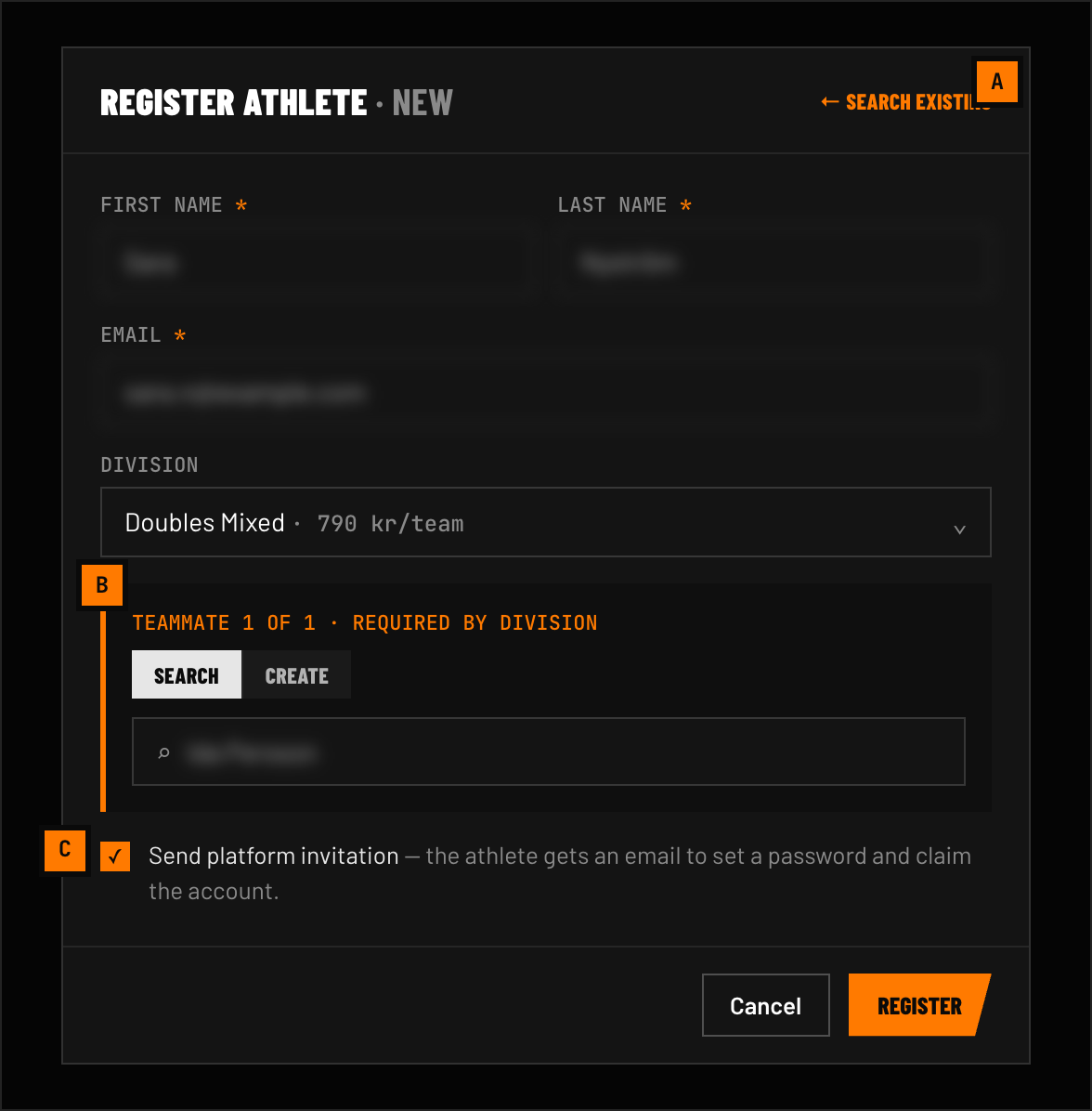 FIG 2 — Create mode. Teammate rows (B) appear only for team divisions; the invitation checkbox (C) is on by default.
Payment options
| Option | What happens |
|---|---|
| Manual payment (default) | Marks the registration as paid. Use for cash or payments taken outside RoxRace (e.g. directly to you). RoxRace never collects this money — it isn't included in your payout request, and no platform fee is charged. |
| Send payment link | A confirmation email with a 7-day Stripe payment link is sent to the athlete. They pay through RoxRace, same as self-registration, and the payment is included in your payout request. No payment record is created until checkout is completed. |
Free divisions (price = 0) create no payment record regardless of which option is selected. See Payments, Refunds & Receipts for how payments and refunds are handled afterwards.
After registration
- A confirmation email is sent to the athlete (the team captain for team divisions) automatically.
- The athlete appears immediately in the participants list.
- If the race has reached its overall capacity, or the division is full, registration is blocked with an error.
- An athlete cannot be registered twice for the same race — a duplicate check runs before saving.