Live Timing & Results
Capture finish times in real-time using the Start and Finish views, or enter one overall result per athlete manually. Leaderboards update instantly.
Timing modes
RoxRace supports multiple ways to capture results, all under the Race day section of Race Management:
- Live timing — Start a heat and capture finish times in real-time as athletes cross the line, using the Start view and Finish view (plus an optional Split Times view for checkpoint splits — not required for RoxRace to work).
- Manual entry — A flat table for entering one overall result per registration (total time and status — OK, DNF, DQ or DNS) after the race — useful with an external timing system or paper recording. Penalties are added separately under Results → Penalties.
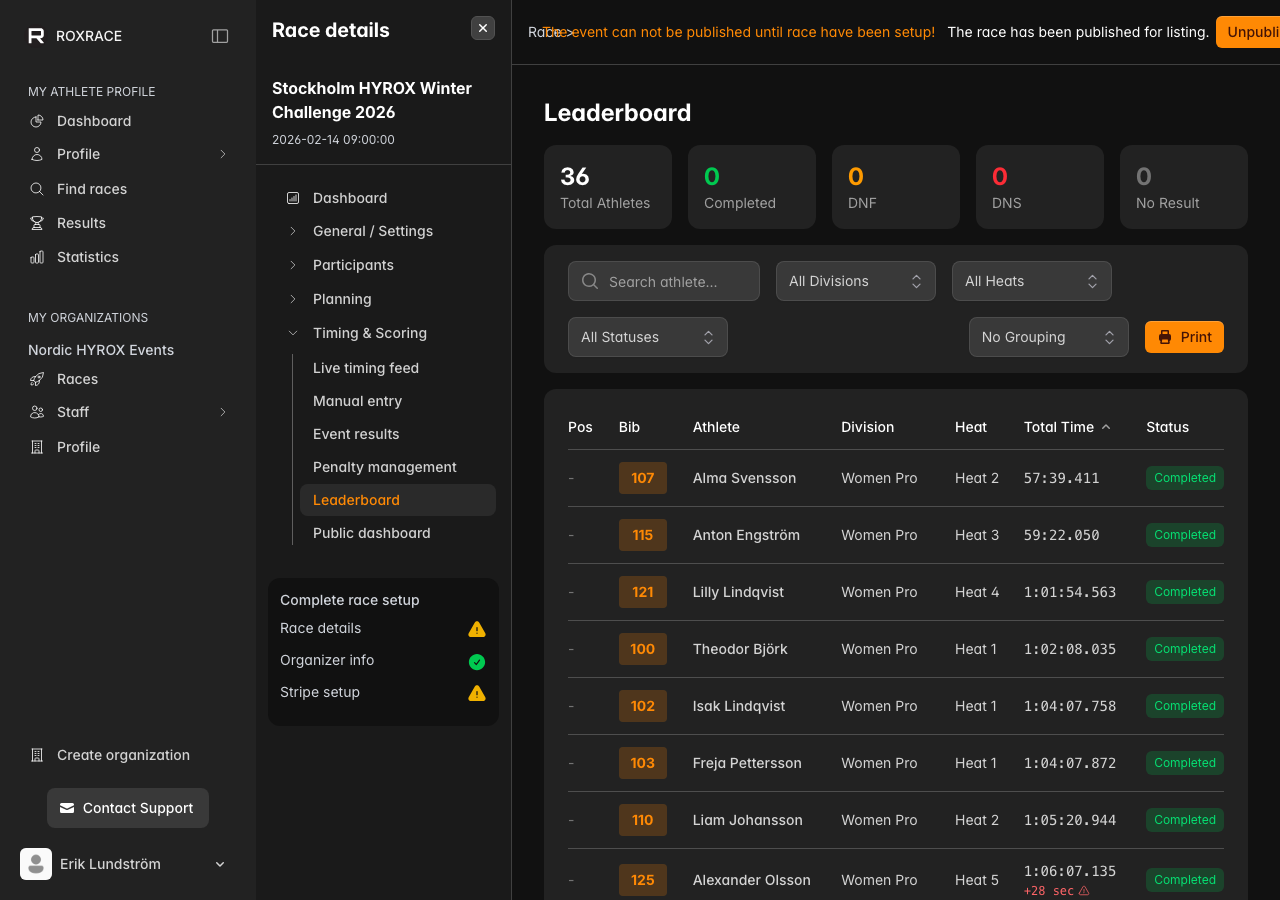
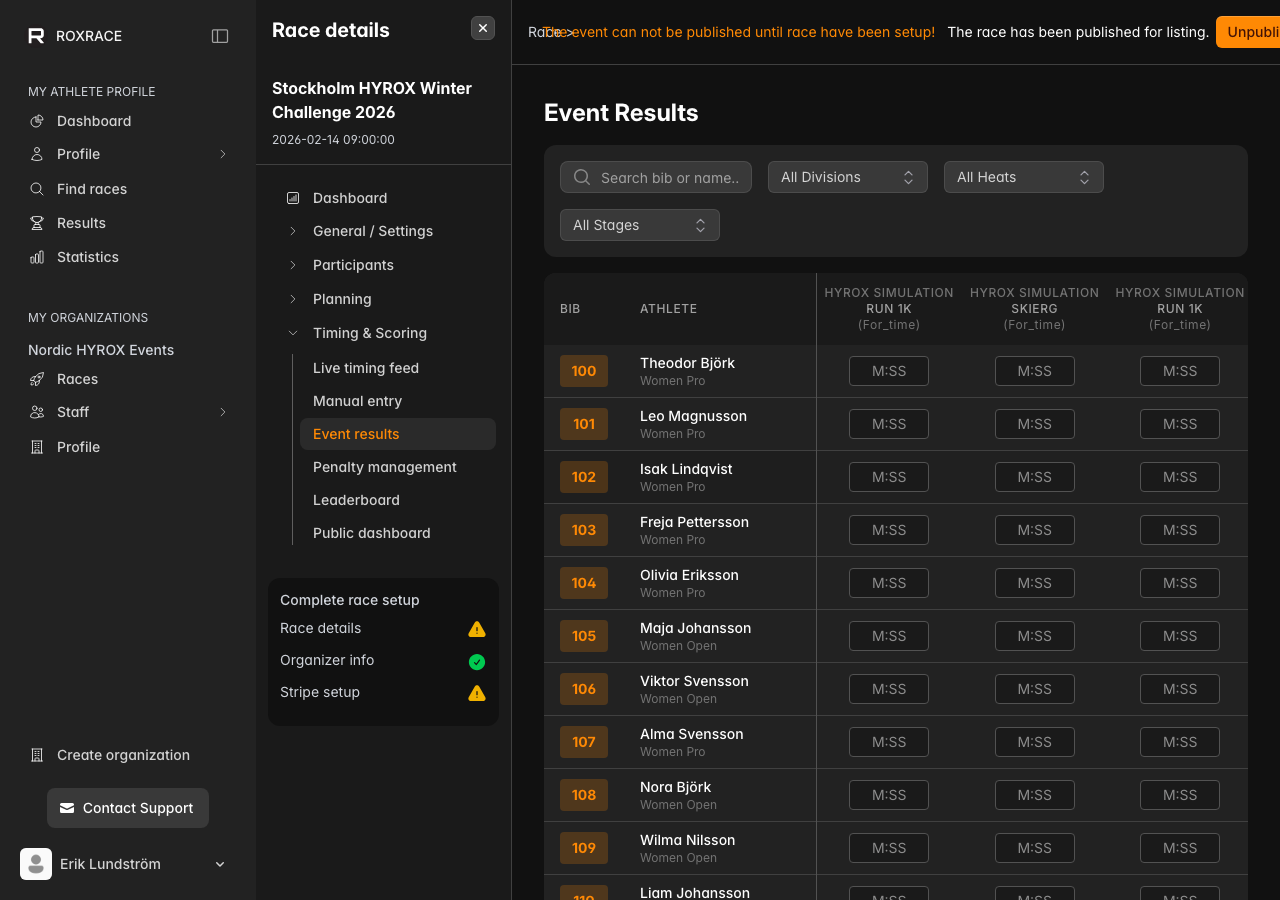
For multi-event races (like HYROX) that need a result per station — reps, time, points, or load — use the separate Event results page (Results → Event results), not Live timing or Manual entry. RoxRace calculates totals from those per-station entries automatically.
Setting up for live timing
Live timing works best with two devices — one at the start line and one at the finish line. Go to Race Management → Race day → Live timing: from there, Open Start View, Open Finish View and the optional Open Split View each open in a new browser tab. Manual entry is a separate item in the same Race day group.
- Open the Start view on the device at the start line
- Open the Finish view on the device at the finish line
- Both screens stay in sync automatically via a real-time connection — no manual refreshing needed
- Tap the sun icon (Prevent screen from sleeping) on each device to keep the screen awake during the race — it's shown on browsers that support it
On a phone, each view is split into two tabs — Heats / Timer on the Start view and Capture / Finishes on the Finish view.
Both views need an internet connection, but only the Finish view blocks you when it drops — a "WebSocket Offline" overlay disables captures until the connection is restored (all data recorded before the drop is preserved). The Start view only shows a small "Live/Offline" status pill and keeps working. The Start view also keeps your login session alive on a long race day; if the session does expire, a red banner asks you to reload instead of silently dropping changes.
Start view — managing heats
The Start view is used by the official at the start line. Its job is to send each heat off at the right time and record the exact moment they start.
Selecting a heat
The left sidebar (the Heats tab on a phone) has two tabs: Upcoming and In Progress. Finished heats aren't a separate tab — they're folded into a "Finished" section at the bottom of the Upcoming tab. The next scheduled heat is selected automatically when the page loads. Click any heat to switch to it.
Starting a heat
Click Start Countdown to begin a 10-second countdown. The system plays audio beeps on the last 5 seconds and a start tone at zero. When the countdown hits zero, the heat start time is recorded automatically and sent to the Finish view. Browsers only allow sound after you've interacted with the page, so tap anywhere on the screen once before the first countdown.
If you press Start Countdown within the last 10 seconds before a heat's scheduled start, the countdown ends exactly on the scheduled time. Otherwise it runs a full 10 seconds from when you press it. The countdown and the recorded start time use the server's clock, not the device's, so a device whose clock is a few seconds off doesn't shift the results.
Auto-start
Toggle Auto-Start in the header to have heats start on their own, following the schedule. Auto-start always targets the next scheduled heat — not whichever heat you happen to be looking at. Shortly before that heat's start the screen switches to it by itself and runs the countdown so it ends on the scheduled time. While it's on, the heat card shows when the next auto-start countdown begins. This is useful for time-trial formats with back-to-back heats.
If the device was locked, asleep or in the background when a heat was due, auto-start can't run its countdown. Instead a red banner lists every heat it missed — "Auto-start missed … Start them manually." — with a Go to heat button, and auto-start moves on to the next heat on the schedule. Keep the screen awake to avoid this.
Only one tab or device runs auto-start for a race at a time. If you switch Auto-Start on somewhere else, the first one turns it off and shows an "Auto-Start Disabled" notice, so you never get a double countdown.
Managing athletes before the start
Click the ⋯ menu on any athlete card for options:
- Check in — marks the athlete as present (turns the badge green)
- Mark DNS (Did Not Start) — athlete will not race; their result is recorded as DNS (Clear DNS undoes it)
- Remove from Heat — moves them back to the unassigned pool
Once a heat has started, the menu offers Mark DNS, Mark DNF (Did Not Finish) — with Clear DNS / Clear DNF to undo — and Clear start time & remove, which deletes the athlete's finish time and result and takes them out of the heat. This is the only place to mark DNF; the Finish view doesn't have this action.
To pull in a late arrival from the same race, use the standalone Add Athlete button next to Start Countdown (not part of any card's menu) — it opens its own modal where you can search by name, team member, or bib.
If a countdown is interrupted
Reloading the page automatically resets that heat from "countdown" back to "scheduled" — the in-browser countdown state can't survive a reload, so this is what actually clears a stuck countdown for you. The Force Start Now / Reset to Scheduled recovery prompt only appears if you're looking at the heat from a different, still-open browser window while someone else's countdown got interrupted elsewhere.
Adjusting a heat's start time
If a heat was started a little late or early, click Adjust Start Time (shown once a heat has started) instead of resetting it. Choose Shift by seconds (negative moves the start earlier and makes every time in the heat longer — the fix when the timer was started late) or Set exact time. Every finish and split time in the heat is measured from its start, so they all move together and stored results are re-calculated. A preview shows the new start and how the fastest and slowest times change before you apply it. A Reason is required and is recorded in the activity log. If the heat's results are already published, you'll see a warning that athletes can see the change right away.
Resetting a heat
A Reset Heat button appears once a heat has started. Resetting clears the start time and deletes all finish times and results for that heat. This cannot be undone — use it only if something went wrong before any results were recorded. If only the start time is wrong, use Adjust Start Time instead.
Finish view — capturing times
The Finish view is used by the official at the finish line. Its job is to record the exact moment each athlete crosses and assign that time to the correct athlete.
Capturing a finish
When an athlete crosses the finish line, press the large orange CAPTURE FINISH button — or tap the Space bar. The system records the exact timestamp in milliseconds. Each capture appears as a numbered box in the Pending queue.
You can capture many finishes in a row without assigning them immediately — useful when athletes finish in a close group.
To get rid of a duplicate or accidental capture, tap the × on that pending box. Clear all deletes every unassigned capture at once (after a confirmation — this can't be undone).
Assigning a finish time to an athlete
- Select the pending capture you want to assign — tap it, or press N / Select oldest to jump to the oldest one. On the device that pressed Capture, the first capture is selected automatically; a second device used only for assigning has to pick one.
- Find the athlete by typing their name, bib number or a team member's name in the search box, or browse the athlete grid (on desktop you can also filter by heat)
- Click the athlete's card to assign the selected capture to them
- The elapsed time (capture time minus heat start time) is calculated and saved as the result
- The next oldest pending capture is automatically selected
The athlete's card shows their live elapsed time since the heat started, making it easy to verify the captured time makes sense.
If a capture time is before the heat's start time, the athlete card turns red and the assignment is blocked — select a later capture instead.
Keyboard shortcuts
| Key | Action |
|---|---|
| Space | Capture finish |
| N | Select oldest pending capture |
| ↑ ↓ ← → | Navigate athlete cards |
| Enter | Assign (when one athlete is visible or focused) |
Correcting a finish time
Click any entry in the Recent Finishes sidebar (the Finishes tab on a phone — it lists the latest 20 finishes) to open an edit modal. From there you can:
- Adjust the time using the +/− buttons (1 second per tap) and Save — the corrected time is saved in whole seconds
- Undo mapping to unassign the time and return it to the pending queue
Managing DNF athletes
The Finish view doesn't mark DNF — when no pending capture is selected, athlete cards are just shown disabled. Mark an athlete DNF from the Start view instead, via that athlete's card menu (only available once the heat has started).
Results data
For each athlete, results can include:
- Total finishing time (millisecond precision)
- Stage-by-stage split times
- Per-event results (reps, points, load, time)
- Penalties (time additions for rule violations)
- Final position within their division
Penalty system
RoxRace includes a comprehensive penalty system, especially for HYROX-style events. Penalties are tracked per athlete and event, with configurable time additions.
Publishing results
Results appear on your public race page as soon as they're captured — there's no separate publish step. The Results tab is always shown on a published race page and fills in as results arrive; athletes and spectators see live leaderboards by division, with top finishers highlighted. For a big screen at the venue, see the live dashboard in Public Race Pages & Live Dashboard.
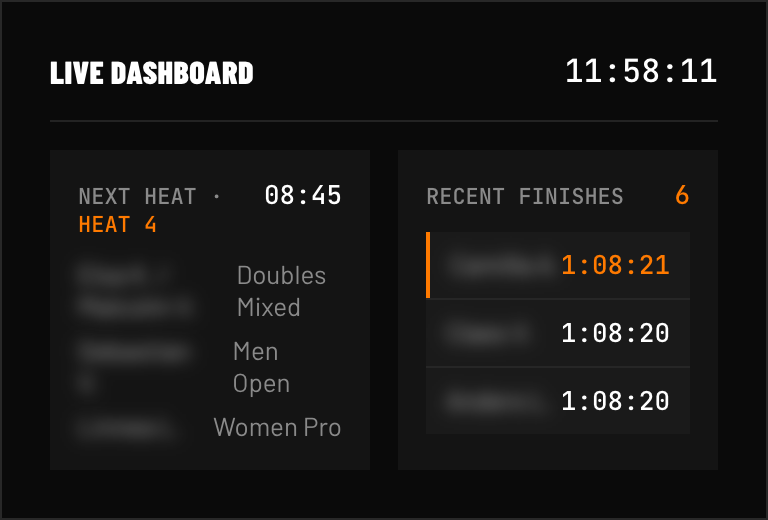 FIG 1 — Venue dashboard: next heat left, finishes stream in on the right.